Excel to CRM Conversion Guide: Customer Management for Small Businesses 2026
The practical guide to moving from Excel to CRM: 5 signs it's time, how to choose a CRM for a small business, a 3-step migration process, common mistakes, and recommendations by business profile.
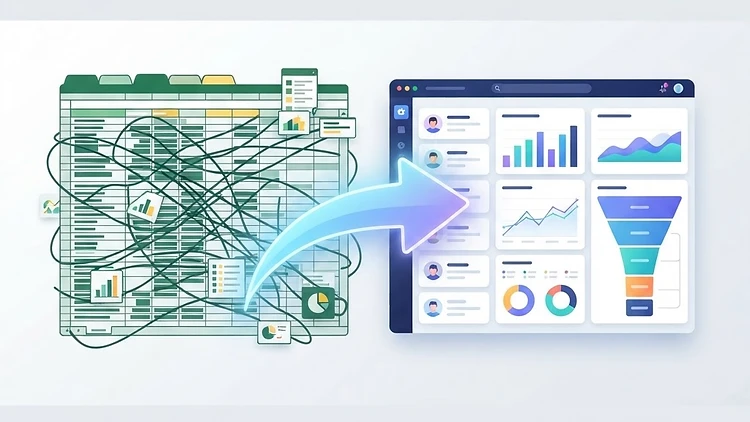
From Excel to CRM: The Complete Guide to Migration, Customer Management, and Marketing Automation — 2026
Last updated: 18.10.2026
Managing customers in Excel is how most small businesses start — and it makes sense. Excel is a great tool: cheap, flexible, and everyone knows how to use it. But there comes a point where Excel turns from a work tool into an obstacle — and most small businesses reach it long before they realize it's time to move to a CRM.
In this guide we'll walk through it step by step: how to recognize that you've reached the migration point, how to choose a CRM that fits a small business, what building a CRM the right way looks like, how to make the move without losing data, and how to avoid the mistakes most businesses make along the way.
The Problem with Managing Customers in Excel — Where It Falls Short
Excel is excellent for managing data. The problem starts when the data needs to turn into action. Here's where Excel fails:
Customers get forgotten. With 50 customers in a spreadsheet, you can remember to follow up with each one. With 150 — someone always falls through the cracks. There's no automatic reminder, no alert that a lead hasn't moved in a week, no way to know a specific customer never got a response. The result: money on the floor. A customer who was ready to buy went to a competitor because nobody got back to them.
No historical tracking. In Excel, every call goes into a notes column. After 3 months there's a long block of text nobody reads. In a CRM — every action is logged with a date, and you can see a customer's entire history in one place. When we spoke, what we said, what the next step is.
No automation. A new customer enters Excel → and then what? You need to remember to send a welcome email. Remember to follow up in a week. Remember to send a quote. In a CRM — it's all automatic. Customer enters → the system sends an email, sets a reminder, updates the status. The time you save isn't just on sending the email — it's on the remembering itself. Your brain doesn't need to remember; the system does it for you.
No big picture. How many open deals do you have right now? What's the pipeline worth? Which customer didn't get a response this week? In Excel you have to filter, sum, count. In a CRM — it's all in one dashboard, updated in real time.
5 Signs You've Reached the Migration Point
How do you know Excel isn't enough anymore? Here are 5 clear signs:
-
You forgot to follow up with a customer — more than once a month. This is the clearest sign. If customers are falling through the cracks, the system isn't working. Once is a mistake. Twice is a pattern.
-
You have no idea what your open deals are worth — if you have to open Excel and sum manually, the system isn't giving you a picture. And without a picture, you're managing blind.
-
Entering data takes too long — if logging a new inquiry takes more than a minute and you keep putting it off, the data isn't being updated. And if the data isn't updated — Excel isn't working for you, you're working for it.
-
You're working with separate tools — customer management in Excel, WhatsApp for communication, a separate email tool for marketing. No connection between them. Everything is manual. And when every tool stands alone — the data is scattered and out of sync.
-
You have more than 100 potential customers — this is the breaking point. Beyond 100 contacts, Excel becomes a headache. Data gets tangled, columns twist, and search becomes a task. If you've hit 100 — it's time.
If you answered yes to 2 or more signs — it's time to move to a CRM.
Choosing a CRM — Not Every CRM Fits a Small Business
There are dozens of CRM tools on the market, and not all of them suit a small business. Here are 4 criteria worth checking:
1. Price. A small business doesn't need a $100/month CRM. There are real free options (Zoho CRM — 3 free users, HubSpot CRM — 2 free users). As the business grows, upgrade to a paid plan. Start from $0. Rule of thumb: if the CRM costs more than 5% of your monthly revenue — it's too expensive for this stage.
2. Complexity. A CRM that requires a week of setup and an outside consultant isn't right for a small business. Look for a system with a simple interface that you can start working with in a single day. Zoho and HubSpot allow quick setup. Salesforce — no. A sign the system is too complex: if you need YouTube tutorials to figure out how to add a customer — it's not the tool for you.
3. Language and localization. This is critical if your customers read Hebrew. Some tools don't support RTL (right-to-left), which makes forms and emails look reversed. ActiveCampaign supports full Hebrew — including RTL, email templates, and the Israel timezone for scheduling automations. Zoho and HubSpot support it partially. If your customers are Israeli — Hebrew support isn't an option, it's a must.
4. Integration. The CRM doesn't work alone. It needs to connect to your website, WhatsApp, and email. Make sure the CRM is supported by Make or Zapier. All the tools in our list are supported by Make. Without integration — the CRM becomes just another spreadsheet you maintain manually, exactly like Excel.
The Migration Process in 3 Steps
Step 1: Export from Excel
Before moving anything, tidy up the Excel file. Reduce the sheet to the essential columns: name, phone, email, status (potential / active / customer), last contact date, notes. If there are columns you haven't used in 3 months — delete them.
Important tip: Clean the data before importing. Remove duplicates, fix phone numbers (one consistent format — 972-50-1234567 for everyone), and make sure every row has at least a name and a contact method. Cleaning data after the import is much harder — because the data is already scattered across the system.
Step 2: Import into the CRM
Most CRM tools allow importing from a CSV file. The process is simple: save the Excel file as CSV, upload it to the CRM, and map the columns — telling the system "this column is the name, this column is the phone, this column is the status."
Important: Don't import everything at once. Start with 50 rows, verify everything came in correctly — phones in the right format, statuses set properly, no empty rows — and only then import the rest. This saves you from manually fixing hundreds of rows.
Step 3: Connect Automation
This is the step where the CRM starts working for you. Connect Make to the CRM and build a first scenario: website form → new lead in the CRM → WhatsApp message to the customer → a task in your calendar. From this moment, every new inquiry enters the CRM automatically, the customer gets an immediate confirmation, and the task waits in your calendar.
If you have a mailing list — connect ActiveCampaign and start an email series for new leads. Hot leads get an offer, cold leads get the newsletter. All automatic, without you touching the keyboard.
AI-Powered CRM — The Next Generation of Customer Management
Once the CRM is set up and working, the next step is adding a layer of AI. An AI-based CRM takes the data already in your system and turns it into automatic actions — without you having to analyze it yourself.
What an AI-powered CRM does that a regular CRM doesn't:
- Automatic lead scoring — the system analyzes every new lead and ranks it by likelihood to close. A hot lead rises to the top of the list, a cold lead gets an automatic email series. You don't have to guess who to approach first.
- Automatic message drafting — the AI writes personalized follow-up messages based on the customer's history. Instead of a generic template, the customer gets a message that references the last conversation, the product they were interested in, and the stage of the process.
- Churn prediction — the system identifies customers showing signs of churn (declining purchase frequency, unopened emails) and reminds you to reach out before they leave.
- Automatic call summaries — every customer call is logged, summarized, and added to the customer's card. You don't need to write a manual summary after every conversation.
How to start: GoHighLevel includes built-in AI capabilities — lead scoring, automated messages, and call summaries. Make lets you connect ChatGPT to any existing CRM and build the AI layer yourself. For a small business — GoHighLevel is the faster solution because everything is built in. For a business with specific needs — Make gives you full flexibility.
Marketing Automation — The Stage After the Migration
Moving to a CRM without marketing automation is half the job. Marketing automation is the ability to send the right message, to the right customer, at the right time — without doing it manually. Here's what that actually looks like in a small business:
- Lead nurture track: a new lead gets a welcome message, a useful tip after 3 days, an offer for a consultation call after a week. All automatic — the lead warms up while you're working.
- Reminders for existing customers: a customer who hasn't purchased in 60 days gets a "we miss you" message with an offer. A customer whose treatment ended gets a renewal invitation.
- Automatic lead scoring: every interaction (email open, click, site visit) raises or lowers the score — and you can see who's ready for a sales call and who's still in research mode.
And the new generation in 2026? AI agents. Not just a system that suggests — an agent that acts: answering WhatsApp inquiries, feeding ranked leads into the CRM, and managing customer follow-up autonomously. We wrote a complete guide about it: AI agents for small businesses. A business that moves its data from Excel to an AI-powered CRM — enters this generation directly, skipping the intermediate stage.
The connection between the CRM and marketing automation is exactly where Make comes into the picture: it connects the CRM to email, WhatsApp, and landing pages, and runs all these tracks without code. For a business that wants everything in one system — GoHighLevel includes the CRM, the tracks, and the pages in one place.
Automating Processes in Excel — Before You Move Everything to a CRM
Before you move all your customer management to a CRM, it's worth knowing: Excel itself can work harder than most businesses imagine. Automating processes in Excel — with tools like Make — lets you cut a big chunk of the manual work even without switching systems: automatic customer status updates, reminders triggered by dates in cells, syncing between an Excel file and email, and reports that build themselves.
Why does this matter for the CRM migration? Because a business already familiar with automation in Excel moves to a CRM faster and gets more out of it — the habits and processes are already defined. We wrote a whole guide about it: Excel process automation — a practical guide for small businesses.
Connecting Automations to the CRM — What Can You Automate?
The CRM is the foundation, but the real value comes when you connect it to other systems. Here are 5 automations worth building right after the Excel migration:
1. Website form → lead in the CRM — every form submission on your site enters the CRM automatically with all the details, a "new" status, and a calendar reminder for a week out. No manual copying, no forgetting.
2. New customer → welcome email + WhatsApp — the moment a customer enters the CRM, the system sends a welcome email and a WhatsApp message. The customer feels attended to immediately, and you don't have to remember to send anything.
3. Lead that hasn't moved in 7 days → automatic reminder — the CRM identifies a lead whose status hasn't changed in a week and sends a reminder to whoever is responsible — you or an employee. No lead falls through the cracks.
4. Invoice in Sumit → status update in the CRM — when a customer pays and an invoice is issued in Sumit (a popular Israeli invoicing platform), the CRM automatically updates to "active customer." No need to update two systems manually.
5. Satisfaction survey → customers who closed a deal — a week after a deal closes, the system sends an automatic satisfaction survey. The answers go into the customer card and provide direction for improvement.
How to build these automations: Make connects the CRM to all these systems — website, WhatsApp, Sumit, email — without code. The free plan is enough to start. For those who want everything in one system — GoHighLevel includes CRM + WhatsApp + email + automation in a single platform.
Common Migration Mistakes — and How to Avoid Them
Mistake 1: Moving everything at once. The worst thing you can do — import 500 rows with inconsistent formats and then clean manually. Solution: clean the Excel before importing, import 50 rows as a test, and only then the rest.
Mistake 2: Choosing an over-complicated CRM. A business with 80 customers doesn't need Salesforce. It's like buying a truck to deliver one item a week. Solution: start with free Zoho or free HubSpot. Upgrade only when the business demands it.
Mistake 3: Not connecting automation. Moving data from Excel to a CRM and leaving everything manual — that's half a migration. The CRM becomes another spreadsheet you maintain manually. Solution: connect Make from day one. One scenario — website form → lead in the CRM — changes everything.
Mistake 4: Not training the team. If you have employees and they don't know how to work with the CRM — they'll go back to Excel. And rightly so, because Excel is familiar and the CRM isn't. Solution: an hour of training for every employee; make sure each one knows how to enter a lead, update a status, and close a deal. An hour invested now saves weeks of frustration later.
Mistake 5: Deleting the Excel file immediately. Keep the original Excel for at least a month after the migration. If something went wrong in the import — you have a backup. Only after a month of the CRM working properly can you delete it.
Mistake 6: Setting up overly complicated statuses. "Initial inquiry," "call scheduled," "email sent," "quote sent," "awaiting reply," "awaiting signature" — too many statuses confuse more than they help. Solution: start with only 4 statuses: new, active, closed-won, not-relevant. Only once the process is stable — add statuses as needed.
How Long Does the Migration Take and What Does It Cost?
Time: one working day for the basic setup — export, import, connecting Make. Another week of working with it until the system feels natural and the team (or you) is comfortable.
Day-by-day breakdown:
- Day 1: clean the Excel, export to CSV, import into the CRM, set up statuses
- Day 2: connect Make to the CRM, build the first scenario (website form → lead)
- Day 3: test the scenario, fix issues, launch
- Week 2: ongoing work, getting used to it, fine-tuning
Starting cost:
- Zoho CRM free — $0
- Make — $0 on the free plan (1,000 credits per month)
- Total: $0 for the first month
Cost as the business grows:
- Make Core — $9/month
- ActiveCampaign Starter — $15/month (for marketing email)
- Total: $24/month
For a business that needs all the systems in one place — GoHighLevel at $97/month replaces CRM + email + WhatsApp + landing pages. It's more expensive, but it saves you from managing several separate tools. Suitable for a business that has already grown past the initial stage.
Recommendation by Business Profile
Freelancer (one client per inquiry) — fast CRM setup
Recommendation: free Zoho CRM + free Make. Cost: $0. Start by importing the Excel file, connect a website form to the CRM through Make, and that's it. There's no need for marketing email when you have 30 customers. When you reach 100 leads — upgrade to Make Core ($9) and add ActiveCampaign.
Small business (2-5 employees, 50-200 customers)
Recommendation: free Zoho CRM or free HubSpot + Make Core ($9) + ActiveCampaign Starter ($15). Cost: $24/month. Make feeds leads automatically from the website and WhatsApp, the CRM scores and organizes them, and ActiveCampaign sends segmented emails based on lead temperature. This is the combination that worked in a real case and doubled revenue in 3 months.
Medium business (5-15 employees, 200+ customers)
Recommendation: GoHighLevel ($97/month). All the systems in one place — CRM, email, SMS, WhatsApp, landing pages, team management. At this stage, managing separate tools costs more than the investment in GHL. Connect Make to feed leads from external sources (Facebook Lead Ads, forms, external CRM).
Further Reading
- From Zero to CRM in One Day — Connecting Make + CRM + AI for a Growing Business — a real case of a business that moved from Excel to a CRM and doubled revenue in 3 months
- How to Create a CRM from Scratch — Step-by-Step Guide — building the CRM correctly from day one, with automation
Ready to start?
Try Make for free — free plan with 1,000 credits per month, no credit card required Open a free Zoho CRM Start an ActiveCampaign trial — https://www.activecampaign.com Open GoHighLevel
Disclosure: The Make link in this article is an affiliate link. If you purchase a subscription through it, we'll receive a commission — at no extra cost to you. The GoHighLevel (GHL) link is also an affiliate link — we'll receive a commission if you purchase a subscription through it, at no extra cost to you. The Zoho link is an affiliate link — we'll receive a commission if you purchase a subscription through it, at no extra cost to you. The ActiveCampaign link is not an affiliate link. Our recommendations are based on professional experience, not just commercial considerations.
Want to stay updated on CRM, automation, and AI tools for businesses? Subscribe to the UDigitalAI newsletter — and get the tools and processes that actually save time and grow revenue delivered straight to your inbox.
Recommended SaaS tools for your business
Tools we've tested in the field with clients and businesses — worth the investment. Links marked as affiliates: if you buy through them we earn a commission, at no extra cost to you.
Zapier
אוטומציהחבר יותר מ-6,000 אפליקציות ובנה אוטומציות ללא קוד — מהמהירות ביותר להפעלה בעסק.
Make
אוטומציהאוטומציה ויזואלית עם בקרה מדויקת על כל שלב — מתאים לזרימות עבודה מורכבות.
Notion
פרודוקטיביותמסמכים, מסדי נתונים וניהול פרויקטים במקום אחד — בסיס ידע מרכזי לצוות.
HubSpot CRM
CRMניהול לקוחות חינמי עם כלים שיווקיים מובנים — נקודת התחלה מצוינת לעסקים צומחים.
ChatGPT Plus
AIגישה ל-GPT-4o וכלי יצירה מתקדמים — עוזר אישי AI לכתיבה, ניתוח ומחקר.
Airtable
ניהול נתוניםמסד נתונים גמיש שמרגיש כמו גיליון — לניהול תהליכים עסקיים בלי פיתוח.
Disclosure: some links on this page are affiliate links. If you purchase through them, UDigitalAI may earn a commission — our recommendations are based on hands-on experience, not on the commission.
Comments
Share your insights and join the conversation.
No comments yet. Be the first to respond.
ID: UDA-EN-011